Wednesday, August 3, 2022

Apple A/UX 3.1 - A Macintosh IIci Installation

Apple A/UX 3.1

Also known as the Apple© Workgroup Server 95

"A Macintosh IIci installation"

About A/UX 

From Wikipedia:
A/UX is Apple Computer's Unix-based operating system for Macintosh computers, integrated with System 7's graphical interface and application compatibility. Launched in 1988 and discontinued in 1995 with version 3.1.1, it is Apple's first official Unix-based operating system.[2] A/UX requires select models of 68k-based Macintosh with an FPU and a paged memory management unit (PMMU), including the Macintosh II, SE/30, Quadra, and Centris series. It is not the predecessor to macOS.

Introduction

I've always like Unix. It was the first operating system I learned, and until I became familiar with the Macintosh 68K operating systems, my favorite. It, and the C programming language, have always been my comfort zone. You never forget your first, as they say.

I will be creating a series of blog posts related to Apple A/UX covering installation and configuration, user management, and using A/UX to perform software development. 

Understand, I'm not a system administrator. I was a fair "forms over data" software developer for much of my career and most of that in the Microsoft stack. Unix system administration is new to me. This should prove interesting. 

A/UX is an old operating system and very likely cannot be made secure in today's environment. I will probably stick to using it as if it were deployed to a pre-Internet environment. I might run a web server as an intranet site. We'll see.

This is a very specific installation scenario that may or may not help you with your installation. I will not go over all of the details. There is an excellent set of instructions here at https://www.aux-penelope.com/aux_3.0.htm if you need them.

Ingredients

  • Macintosh IIci with a minimum of 8 MB RAM
  • 4x 4MB 30 PIN SIMM FPM 70ns DRAM non-parity SIMMS
  • IIci compatible monitor
  • BlueSCSI internal drive with mount
  • BlueSCSI Disk Activity LED (optional)
  • BlueSCSI DB-25 external drive (possibly optional)
  • Basilisk II or other Macintosh emulator 
  • A computer to run Basilisk II and burn CDs
  • CDU561-25 CD-ROM drive or other A/UX compatible drive
  • Blank CD-R disks
  • A/UX 3.0.1 Installer floppy image
  • A/UX 3.0.1 Install CD image
  • A/UX 3.1 Upgrade CD image
  • AWS Tuneup 2.0 
  • HD Floppy disk (optional)
  • Micro SD card for BlueSCSI 

Mise En Place

As with cooking, it is best to prepare the necessary ingredients before you start.

A/UX Compatible Computer

Due to the kindness of Xodium Retro (https://twitter.com/XodiumRetro), I acquired a Macintosh IIci computer. As noted, there are a limited number of 68k Macintosh computers that will run A/UX. The A/UX information found at the very helpful site https://www.aux-penelope.com/ indicates a Macintosh IIci can run A/UX, if a bit slowly. 

Memory Upgrade

The Macintosh IIci had only 4 MB of RAM. Per aux-penelope.com, we a minimum of 8 MB is needed. I found 4 new 4MB 30 PIN SIMM FPM 70ns DRAM non-parity SIMMS from Memory Masters on eBay. With the 4 MB in the first bank and 16 MB in the second bank I had a whopping 20 MB of RAM. Plenty to run A/UX.

Monitor

The Macintosh IIci did not come with a NuBUS video card. Fortunately, the IIci has built in video. Finding a compatible monitor can be a challenge. The video requires a monitor that can sync on green, which is uncommon today. I did find a Dell 1905FP monitor that will sync on green at a vintage store for $15. It has a VGA input that will work with a HD15 VGA Monitor Female to DB15 MAC Male Converter Adapter w/ Dip Switches I found on eBay. This worked, but was not the esthetic I am looking for. I happened upon a 13" Macintosh Color Monitor M1212 on Facebook Marketplace for $30. A much better combination visually. 

CD-ROM Drive

A/UX requires a CD-ROM drive to be installed. I tried to use the new beta version of the .iso/.toast image mounting capability recently added to the BlueSCSI firmware. Unfortunately, there is a very short list of A/UX compatible hardware, including the CD-ROM drive. Fortunately, my Performa 550 has a model CDU561-25 Apple 300 CD-ROM drive which is compatible with A/UX. We'll be using a BlueSCSI for the hard drive, just not to host the A/UX install and upgrade media.

BlueSCSI

The BlueSCSI is a very capable SD SCSI solution for vintage Macintosh computers used to replace aging and failing SCSI hard drives. The IIci did not include a SCSI hard drive, and I'd replace it if it had. Original Macintosh SCSI hard drives are getting very old and unreliable. 

I needed both an internal BlueSCSI to permanently host A/UX as well as an external DB-25 BlueSCSI for installation. The reason for this will become apparent in the installation steps I went through. You may, with the right cabling and power connectors, be able to make do with just an internal BlueSCSI.

A computer to run Basilisk II & burn CDs

You'll need to burn CDs and manipulate BlueSCSI disk images to run the floppy installation program. I used my eMac to burn the CDs and my Windows 10 computer to run Basilisk. 

CD-R media & A/UX installation images

Since A/UX requires installation from a CD-ROM drive, you'll need media. I was successful with Memorex CD-R 52x 700MB 80min CDs. I tried to use some cheap non-branded CD-R disks and ran into issues burning them. YMMV. I also ran into issues burning the A/UX 3.1 upgrade image using my Windows 10 computer. I used my eMac with a combo drive and Roxio Toast Titanium version 5.2.1.

You'll need the A/UX 3.0.1 floppy installer, A/UX 3.0.1 install CD, and A/UX 3.1 upgrade CD images, and AWS Tuneup 2.0 floppy image. These can be found on the Internet. 

High Density Floppy Disk

You will not need a high density floppy disk to run the installer. You can run the install floppy from the BlueSCSI. Details to follow.

If you prefer to have the vintage experience, create a floppy disk from the installer image. I tried, and the installation froze and ejected the disk. I may have a problem with the floppy drive.

SD Card

You will need a micro SD card for the BlueSCSI. A/UX does not use much space as you can imagine. In fact, you'll want to create a blank drive image that is under the 2 GB limit. I used a 16 GB SD card and created extra empty drives to use later.

Basilisk II 

If you follow my method, you'll need to copy files from the floppy installation disk image to a BlueSCSI disk image. I use Basilisk II to do this. 

Installation

Prepare your SD card. 

How to prepare and use a BlueSCSI is well covered at https://github.com/erichelgeson/BlueSCSI/wiki/Getting-Started. I'll go over the details for the A/UX installation. 

You'll need a small, 100 MB hda file to create your boot floppy drive.  I named mine HD60_512_AUX_INS.hda or something like that. The important thing is to make sure it's named so it will be the first bootable drive that is found by your BlueSCSI.

Using an emulator such as Basilisk II, copy the contents of the A/UX 3.0.1 floppy installer disk image to HD60_512_AUX_INS.hda. You may want to ensure it's blessed by dragging the System folder to your desktop, and then back onto the disk image.

Add a 2 GB empty hda file to create your installation target drive. I named mine HD50_512_AUX.hda. 

Connect your CD-ROM drive to the Macintosh IIci

Your IIci will probably have a single connector SCSI cable for the hard drive and a single Molex power connector. Rather than wait for ordering replacement parts, I used these to connect the CD-ROM drive. It would have been easier if I had a power connector splitter that would provide two power connectors and a SCSI cable with two SCSI adapters, but alas. If you have a compatible external CD-ROM drive, you could probably use it externally. Again, YMMV.

Connect your external BlueSCSI DB-25

My solution was to use my external DB-25 BlueSCSI on the IIci external SCSI connector and use the internal cable and power connector for the CD-ROM drive. Whatever you do, you want the SD card with the floppy boot drive and empty 2 GB hard drive in your BlueSCSI. Do not put the installation CD in the CD-ROM drive yet. 

Boot your Macintosh IIci

Now, boot your Macintosh IIci. If all goes well, it will boot from the floppy installation image into OS 7.0.1, and automagically run the install program. Eventually, it will tell you it can't find the installation CD and ask if you want to "Quite" or "Try Again". 

Insert the A/UX 3.0.1 Installation CD

Insert the installation CD and immediately begin clicking the "Try again" button on the installation dialog. Eventually, the installation CD will spin up and be recognized. If you booted with the CD inserted in the CD-ROM drive, it may not recognize it after booting. If you wait too long to click the "Try again" button, or only click it once, it may fail to recognize the CD is inserted. I had to repeatedly click the button until it found the CD. A different CD-ROM drive might not have this issue. 

Initialize the empty drive

The OS recognized I had an un-initialized drive and offered to initialize it. Initialize the 2 GB empty disk image on the BlueSCSI. I had also added a couple of other drives I intend to use for development. These were initialized. I don't recall if this took place before or after the installation program started running. Probably before.

Select your installation options

I used the Easy Install and selected all of the software. I doubt I'll use UUCP or some of the other modules - whatever. The instructions at  https://www.aux-penelope.com/aux_3.0.htm take you though a custom install where you partition the hard drive, etc. Your choice. Click "Install" when you are ready.

Hurry up and wait...

The installation takes quite a long time to run. You may run into installation issues. See  https://www.aux-penelope.com/aux_3.0.htm for assistance. I ran into a CD-ROM disk read error but it recovered from that. Eventually, it will reboot and rebuild the kernel to match your hardware. Reboot again, and you'll be ready for that upgrade to A/UX 3.1. 

Upgrade to A/UX 3.1

Upgrade to A/UX 3.1. Eject the installation CD if you haven't already done so. Insert the upgrade CD. Wait for it to load, open, and run the upgrade program. 

Upgrade to A/UX 3.1.1

Upgrade to A/UX 3.1.1 using the floppy image. To perform the installation, you must be logged in to the server as "root". If your server is set up with the default configuration, the Autologin feature is enabled. You should be logged in as "root" automatically when you start the server. 

Insert the disk you have just created. If the CommandShell application is the active application, the system displays this message: "This is a Macintosh disk. What do you want to use it as?" If this message appears, click the button labeled "Macintosh."

Double-click the Installer icon. This message appears: "You can only install the AWS 95 Tune-Up on the root volume, '/.' Please click Switch Disk to choose this disk."

Click Switch Disk until '/' is selected. Click the Install button. Click Continue to automatically quit all other running applications.

The tune-up installation begins, and the system displays a progress bar and
status messages during the process.

The kernel is reconfigured; this process may take several minutes. After your server has loaded all of the appropriate tune-up software, the message
"Installation successful" appears.

Click the Restart button to complete the installation.

Post installation setup and configuration

There are several suggestions for post installation setup and configuration at https://www.aux-penelope.com/aux_3.0.htm. We will do more in a future post.

Setup 10Mb Ethernet Networking

Unfortunately, I don't have a network card for this machine. That will have to be a later post.

Disable Autologin

Out of the box, the server automagically logs you into the root account. Although it's highly unlikely anyone is going to gain physical access to this machine, I want the login prompt to come up when it's turned on.

In 
 "/mac/sys/Login System Folder/Preferences" you will find a file named "Autologin". It's a text file with a single line at the top - the name of the account to auto-login. Delete the file. 

On the next boot, you'll be asked to login as "Guest" or a registered user. Enter the name "root" and leave the password blank. Click the "Login" button.

Set the Root password

The root password should not be left empty for obvious reasons. Set it to something and make sure you remember it!

From the CommandShell, enter the command "passwd" and press "Return". You will be asked for a new password. Type in your new password and press "Return". Note, as you type, nothing is displayed on the screen. You will then be asked to re-enter the new password.

Setup a user account

You should setup a user account for yourself and anyone else using the system. For each user, you'll need the following:

User's login name (e.g. fred)
The user's login name is usually all lowercase alphabetic characters. You can enter a maximum of 15 characters. To make sure you use a unique name, enter the command 

finger -m login-name

Where the parameter "login-name" is the login name you intend to use. If you see any output about the directory, shell, etc., the user name is already in use. Pick another login name until you find one that isn't used.

User's full name (e.g. Fred Smith)
You can pick any alphanumeric characters including spaces for the full name.

Office address, Office telephone, Home telephone
I left the address and phone numbers blank.

Initial group
For the initial group, you'll need to an existing group name or you can create a new group. The command we use to create a new user will list the existing group names. 

Shell
The shells available are csh or sh. Use the default "/bin/csh".

Home directory
Use "/dir/login-name" where login-name is the name you used for the user's login name. 

From the CommandShell, run the command "adduser". 

Enter the user's login name and press "Return". 
Enter the user's full name and press "Return".
Press "Return" for the address and phone number prompts or enter the values you wish. I just pressed "Return" for each.
Enter the initial group. I used "project".
Enter the shell. I pressed "Return" to use the default csh shell.
The default home directory will be /users/login-name. I used the default and pressed "Return".
You will be asked if you want to create a personal System Folder. You do. The default is "yes". I just pressed "Return". 

If everything is okay, press the return key to create the account. Your personal System Folder will be created which took about a minute. You are then asked if the user is required to set a password on initial login. The default is "yes". Press "Return". 

If you want to setup another user, enter that user's login name and continue. If not, press the "Return" key to end the add user program.

Try it out. Log out of the root account. You will see the login dialog. Enter the new user's login name and nothing for the password. You are next presented with a dialog box asking you to enter a new password. Your password must contain at least two alphabetic characters and one numeric or punctuation character. Your desktop will be rebuilt for your new user.


Tuesday, April 6, 2021

PowerBook 520c Restoration - Battery Rebuild

I recently purchased a used PowerBook 520c at an auction. It was described as "powers on", so I had no idea if that meant it would boot up or the power light works. Fortunately, it booted up and appeared to be fully functional.

The PowerBook 500 series introduced several new features. It had the first touch pad, replacing the track ball. It had a 68040 processor but lacked an FPU. The 520c had a color passive matrix display. Not as clear as an active matrix display, but for the time, not shabby. It also came with two battery ports so you could double your battery life.

The NiMH cells in the battery had long given up and probably contained nothing but potassium hydroxide powder. You can find refurbished batteries online. But the company I checked out did not have good reviews and the cost was prohibitive. I decided to rebuild it myself after reading this thread

Materials

I used the Tenergy 9.6V Flat NiMH Battery Packs for RC Cars found here at Amazon (https://www.amazon.com/gp/product/B001BA292A/ref=ppx_yo_dt_b_asin_title_o01_s00?ie=UTF8&psc=1). My thought was that it would be easier than having to solder tabbed cells together myself. It contains eight AA size cells with tabs soldered together. 

You'll also need solder, a soldering iron, X-acto knife, insulating tape, nerves of steel...

Teardown and Rebuild

Sorry, I don't have photographs. I will probably be doing this again so I have another battery to double my untethered time. 

I stripped the shrink wrapped plastic shell from the batteries. It was obvious to me they wouldn't fit still wrapped in the plastic. And the Tamiya connector was useless. 

The outer end cap of the battery pulls off if you pull up along one of the long sides. It will feel as if you are about to break it when it comes free. I also carefully removed the battery contact cover from the opposite end. This will slide off if you lift the tab slightly.

I cut the battery housing apart using an X-acto knife to score the plastic along the seam between the housing halves. I took my time and made small cuts in an effort to avoid cutting any cells or the EMM board. 


If you place the battery with the EMM board facing away from you with the battery contacts to the right (image above), the cells in the battery are arranged in series, starting at the top left negative end soldered to one end of the ribbon cable with six cells until you reach one end of the fuse. The other end of the fuse then connects to the remaining two cells that are flipped around from the orientation of the first six cells. I cut the ribbon cable from the cells by cutting the tabs off the cells leaving them soldered to the ribbon cable.

To use the Tenergy cells, I was required to clip the last two cells free, turn them end over end, and solder the fuse on so it had the same orientation as the original cells. Then I soldered the ribbon cable to the new cells using the tabs still attached to the ribbon cable. 


Once I had the cells and fuse together, I attempted to drop them into the battery housing and found that they were slightly longer (1 or 2 mm) and of a smaller diameter than the original cells. I was able to cut away enough of the internal supporting structure from both halves of the housing to make room for them to fit - but just barely. 


Reassembly was pretty tight. The Tenergy cells had carboard insulating on the ends of the cells that I had to remove and replace with insulating tape. The end cap goes on straight instead of rotating off. You need to use a fine point (I used a paper clip) to compress the spring in the battery latch while you push the end cap back on. The battery contact cover just slides back on.


I used freeware software package named EMMpathy. The software was designed specifically to recondition batteries on PowerBook 500 series  It reported the EMM memory as corrupt and the battery would not charge. What little charge it had started to dissipate. However, someone suggested that I check the power adapter. I hadn't realized it had two lines, one for the laptop main power and a second for charging the battery. Sure enough, my power adapter had a bad battery line. I found a tested replacement on Ebay, the batteries charged and discharged just fine. I was able to get nearly 2 hours of charge from the one battery I have. 


Here's a time lapse video of it discharging.


Sunday, February 28, 2021

Retro Computing: Macintosh SE FDHD -> WiFi232 Modem -> Raspberry Pi PPP Server -> Internet

Retro Computing:
Connecting a Macintosh SE to the Internet


Introduction

The basic idea is to connect the Macintosh to the Internet. This Mac does not have a network card, so I'm using a serial interface to get to a PPP server. Instead of a direct serial connection to the PPP server, I'm using a WiFi232 modem that provides a wireless connection to the PPP server. A bit complex, right?


So why not just use a serial connection directly from the Mac to the Rpi? I'm beginning to think I may need to try that. 

Materials

  • Macintosh SE FDHD
  • Sacrificial Mini Din8 serial cable 
  • Sacrificial DB9 serial cable
  • WiFi232 Modem 
  • Raspberry Pi Zero
  • 32 GB Micro SD Card
Most of the information to set this up can be found at http://podsix.org/articles/pimodem/. I think any WiFi232 Modem should work. I used this one RS232 Serial Wifi Modem for Vintage Computers V3

Build a straight through serial cable for your Macintosh to the WiFi232 Modem. My modem has a female DB9 connector. 

DB9              Mini Din 8
------           ----------
     1 
RXD  2 ---------- 5 RXD- Received data
TXD  3 ---------- 3 TXD- Transmitted data
DTR  4
GND  5 ---+------ 4 GND  Signal ground
          +------ 8 RXD+ Received data
DSR  6 
RTS  7 ---------- 1 HSKo Handshake output
CTS  8 ---------- 2 HSKi Handshake input
     9
Shield ---------- Shield


I sacrificed an old Palm Pilot serial cable with a female DB9 connector and used a male-to-male DB9 adapter to connect the two. 

For the Macintosh you need a Mini Din8 connector. I cut a Mac serial cable 

Setup Raspberry Pi

Follow the usual instructions for setting up a Raspberry Pi. You can go headless if you like. We're going to either create or modify the following files:
/etc/ppp/options
/etc/ppp/pap-secrets
/etc/xinetd.d/pppd
/etc/xinetd.d/telnet
/usr/local/bin/ppplogin
/etc/hosts.allow
/etc/iptables.rules
/etc/sysctl.conf

Make sure you update and upgrade your RPi operating system. 

$ sudo apt-get update
$ sudo apt-get upgrade

Install telnet, xinetd, telnetd, and ppp. If you want to use ZMODEM file tranfers, include lrzsz

$ sudo apt install telnet xinetd telnetd ppp lrzsz

Allow pppd to run with elevated permissions.

$ sudo chmod a+s /usr/sbin/pppd

Create ppp user.

$ sudo useradd -m ppp
$ sudo usermod -aG dip ppp
$ sudo usermod -s /usr/sbin/pppd ppp
$ sudo touch /home/ppp/.hushlogin

Configure pppd. Backup the original files

$ sudo mv /etc/ppp/options /etc/ppp/options.orig
$ sudo mv /etc/ppp/pap-secrets /etc/ppp/pap-secrets.orig

Replace options with the following in the file /etc/ppp/options

$ sudo nano /etc/ppp/options

# We will be doing PPP over Telnet - disable serial control.
local
# Terminate connection if remote side stops responding.
lcp-echo-interval 30
lcp-echo-failure 4
# Debug adds a lot of detail into the system logs regarding PPP negotiation.
# This is helpful in debugging client issues.
debug
# IP addresses to use in local:remote format.  We use NAT to share
# the Wi-Fi connection, make sure these are outside of your real subnet.
192.192.1.1:192.192.1.2 
# Other sensible options
asyncmap 0
passive
noipx

Replace pap-secrets with the following in the file /etc/ppp/pap-secrets

$ sudo nano /etc/ppp/pap-secrets

# Allow any username/password
* * "" *

Configure xinetd to enable ppp over telnet in the file /etc/xinetd.d/pppd

$ sudo nano /etc/xinetd.d/pppd

service pppd
{
type = UNLISTED
flags = REUSE
socket_type = stream
wait = no
user = root
server = /usr/sbin/in.telnetd
server_args = -h -L /usr/local/bin/ppplogin
disable = no
bind = 0.0.0.0
port = 2323
}

Configure xinetd to enable telnet in the file /etc/xinetd.d/telnet

$ sudo nano /etc/xinetd.d/telnet

service telnet
{
disable = no
flags = REUSE
socket_type = stream
wait = no
user = root
server = /usr/sbin/in.telnetd
log_on_failure += USERID
}

And in the file /usr/local/bin/ppplogin

$ sudo nano /usr/local/bin/ppplogin

#!/bin/bash
/bin/login -f ppp

Set the ppplogin script we created to be executable and enable xinetd.

$ sudo chmod +x /usr/local/bin/ppplogin

Edit /etc/hosts.allow and add the following. 

$ sudo nano /etc/hosts.allow

in.telnetd:ALL:ALLOW

Enable and start xinetd.

$ sudo systemctl enable xinetd
$ sudo systemctl restart xinetd

Make sure that xinetd is listening on port 2323:

$ netstat -an | grep :2323
tcp        0      0 0.0.0.0:2323            0.0.0.0:*               LISTEN

Configure IP masquerading (i.e. NAT).

$ sudo iptables -t nat -A POSTROUTING -o wlan0 -j MASQUERADE
$ sudo sh -c "iptables-save > /etc/iptables.rules"

File iptables.rules should look something like this.

$ cat /etc/iptables.rules
# Generated by xtables-save v1.8.2 on Wed Feb 17 18:53:54 2021
*nat
:PREROUTING ACCEPT [0:0]
:INPUT ACCEPT [0:0]
:POSTROUTING ACCEPT [0:0]
:OUTPUT ACCEPT [0:0]
-A POSTROUTING -o wlan0 -j MASQUERADE
COMMIT
# Completed on Wed Feb 17 18:53:54 2021

Edit /etc/sysctl.conf and uncomment the ip_forward line

$ sudo nano /etc/sysctl.conf

# Uncomment the next line to enable packet forwarding for IPv4
net.ipv4.ip_forward=1

Create script to restore iptables rules after reboot in file /etc/network/if-pre-up.d/iptables

$ sudo nano /etc/network/if-pre-up.d/iptables

#!/bin/bash
iptables-restore < /etc/iptables.rules

Make it executable and reboot

$ sudo chmod +x /etc/network/if-pre-up.d/iptables
$ sudo reboot

Make sure ip forwarding is enabled.

$ cat /proc/sys/net/ipv4/ip_forward
1

Check that the masquerade rule is in place

$ sudo iptables -t nat -L POSTROUTING -nv
Chain POSTROUTING (policy ACCEPT 0 packets, 0 bytes)
    6   573 MASQUERADE  all  --  *      wlan0   0.0.0.0/0            0.0.0.0/0
 pkts bytes target     prot opt in     out     source               destination         

Setup Your Macintosh

Now to the Macintosh.

I'm setting this up on System 7.5.1. 

MacPPP

The 68000 processor of the Mac SE prevents using Open Transport so you'll need MacPPP instead. You need MacPPP, 

MacTCP

You'll also need MacTCP. I'm using Glenn's MacTCP patched version 2.1 available at http://www.mactcp.org.nz/mactcp.html.

MacTCP Watcher 1.1.0

This tool will allow you to test your network with Ping, UDP, TCP, and DNS. You can also use MacPing but, as named, it only tests ping.

NCSA Mosaic 1.0.3

Or some other browser. There are several that work with a 68000. 

ZTerm 1.0.1 

ZTerm is handy for telnet sessions. I this by getting telnet to work first.

Installation & Configuration

There are several guides for installing and configuring MacTCP and MacPPP. I'll go over the settings I've tried.

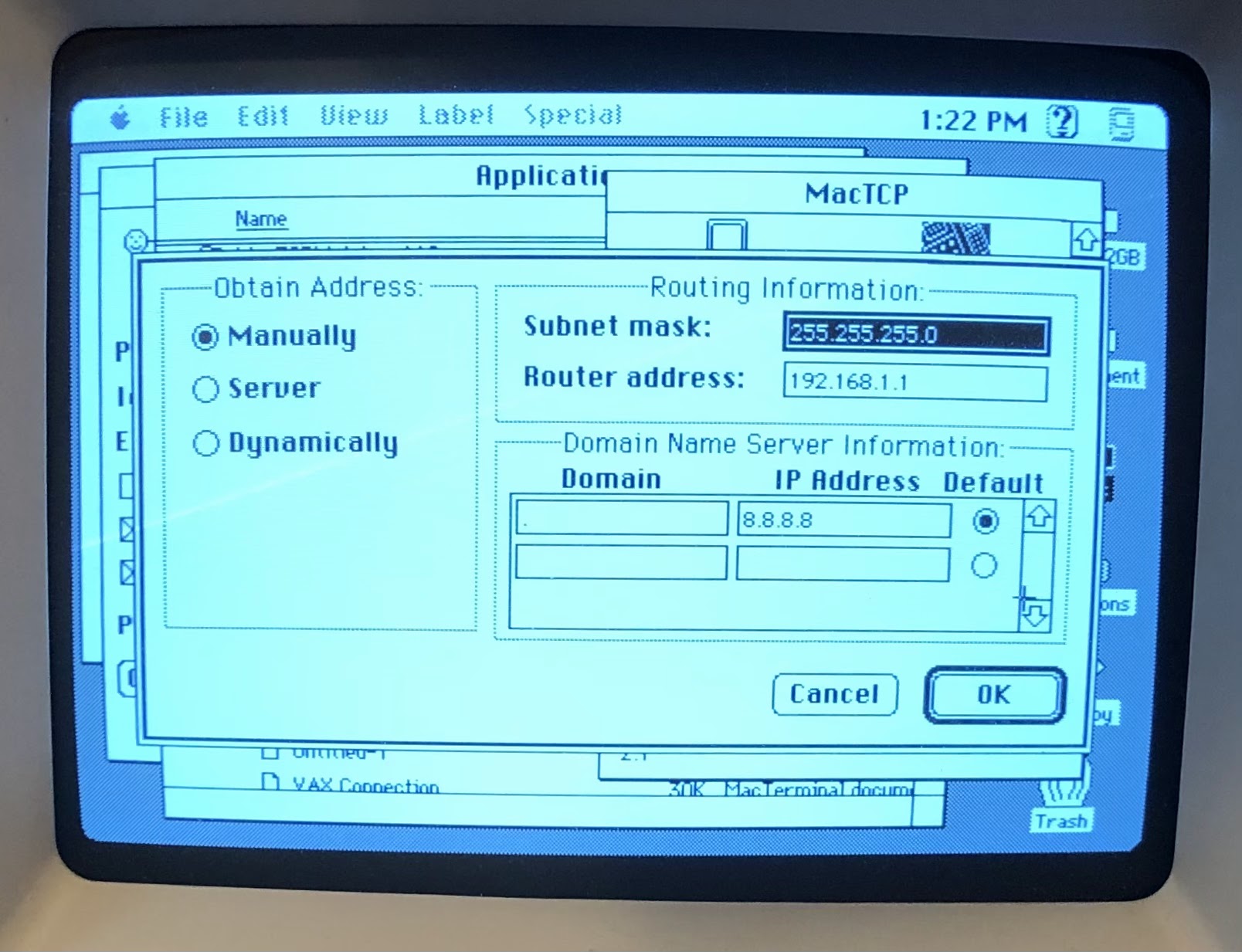
MacTCP

You'll need MacPPP installed before you can configure MacTCP. 

Select PPP.
Click the "More..." button.
Select the following options:

    Obtain Address: Manually
    Subnet mask: 255.255.255.0 
    Router address: 192.168.1.1
    Domain: .
    IP Address: 8.8.8.8


MacPPP

Port Name: Modem Port
Idle Timeout (minutes): None
Echo Interval (seconds): Off
Terminal Window: unchecked
Hangup on Close: checked
Quite Mode: checked


Create a new PPP Server by clicking "New..." and entering a name. Mine is "Raspberry Pi"
Select the following options:

    PPP Server Name: Raspberry Pi
    Port Speed: 57600*
    Flow Control: CTS & RTS (DTR)
    Tone Dial: checked
    Phone num: 192.168.1.33:2323**
    Modem Init: ATNET1***
    Modem connect timeout: 90 seconds

   
Under LCP Options I left the defaults. I did try changing the MRU Local and Remote values to 500 to no effect. I also tried to following the settings recommended at https://www.jagshouse.com/PPPGuide.html with no change in the result.


Under IPCP Options I left most of the defaults. I inserted the Local and Remote IP Addresses from the PPP configuration on the RPi. 
    Local: 192.192.1.2 
    Remote: 192.192.1.1


*I've tried this at 9600 to see if I was serial speed issues. 9600 is basically a safe speed to test at. Didn't make a difference in the results.

** This is the IP address of the Raspberry Pi and the port configured for the PPP interface.

***ATNET1 puts the WiFi232 modem in telnet mode.

Conclusion

I must admit, this was not entirely successful and I'm having difficulty sorting out what is wrong. 

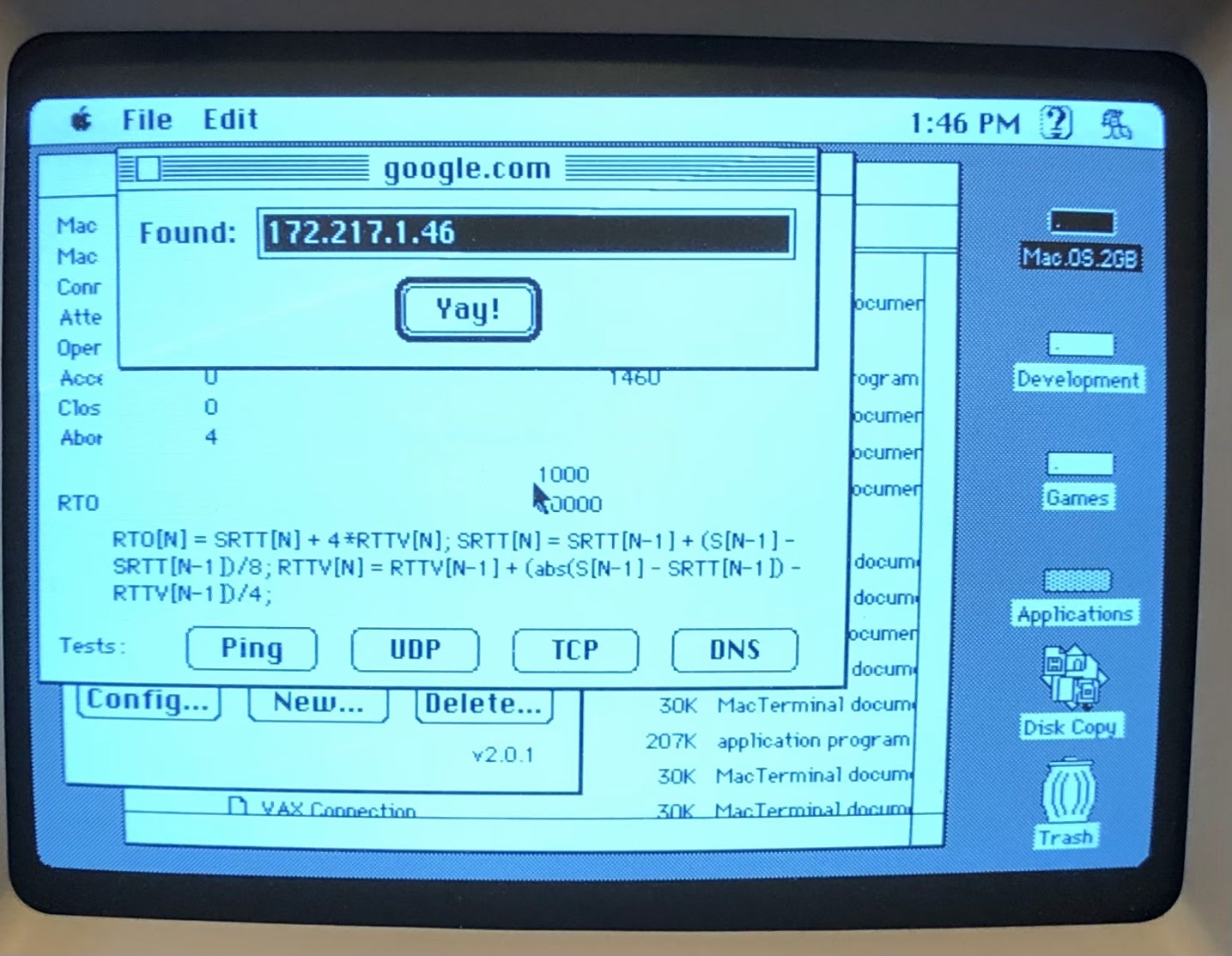
DNS works.


ICMP (ping) works. 

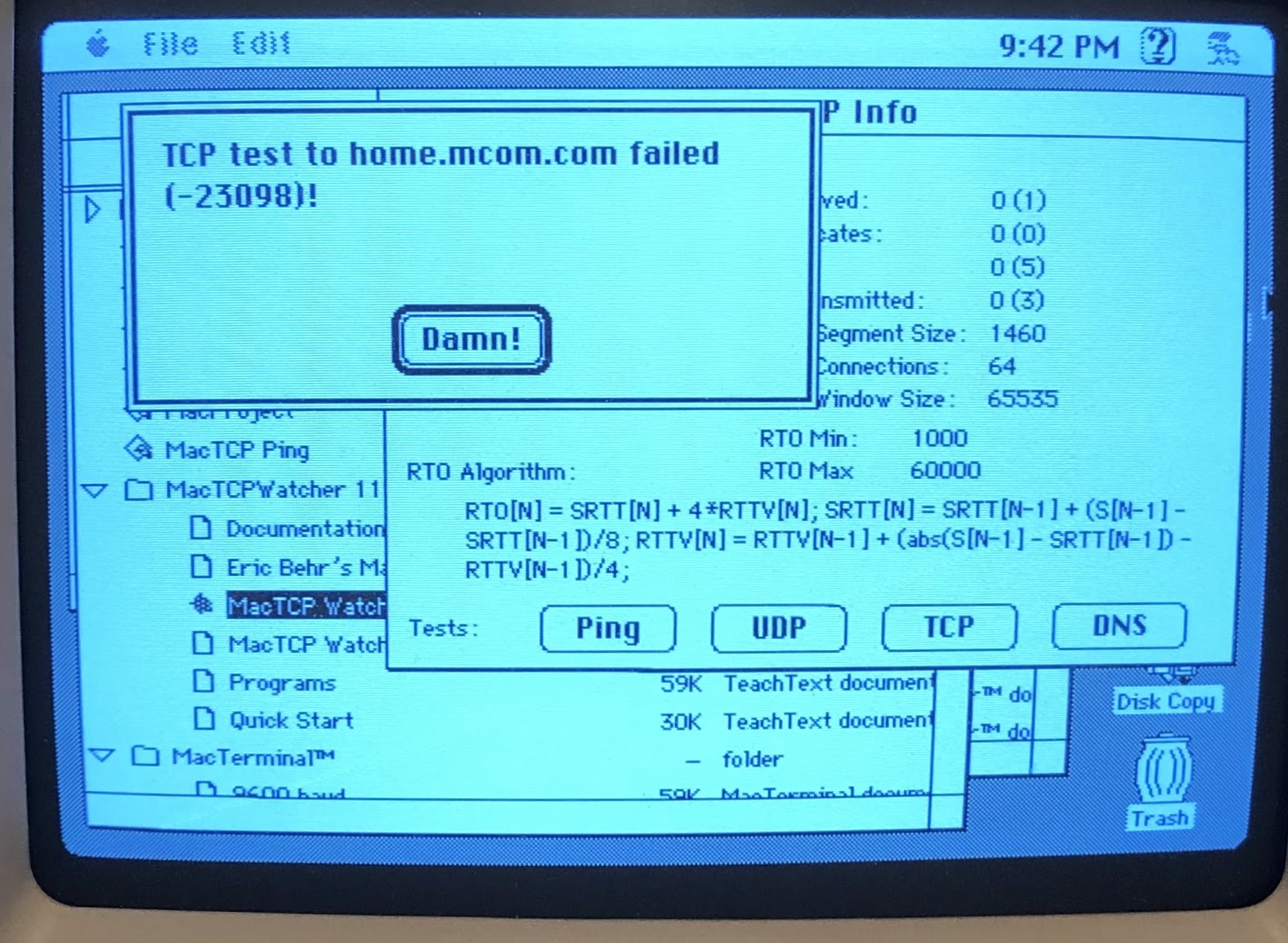
TCP does not work.


And can anyone tell me what this error number represents -23098? I cannot find any documentation for MacTCP Watcher.


A tcpdump of the ppp0 interface when pinging google.com gives the following:

$ sudo tcpdump -i any -A  -nvvv host 192.192.1.2
tcpdump: listening on any, link-type LINUX_SLL (Linux cooked), capture size 262144 bytes 
16:37:07.042160 IP (tos 0x0, ttl 255, id 44, offset 0, flags [none], proto ICMP (1), length 42)
    192.192.1.2 > 172.217.6.14: ICMP echo request, id 31047, seq 0, length 22
E..*.,....F............%yG...Watcher......
16:37:07.161128 IP (tos 0x0, ttl 113, id 0, offset 0, flags [none], proto ICMP (1), length 42)
    172.217.6.14 > 192.192.1.2: ICMP echo reply, id 31047, seq 0, length 22
E..*....q..)...........%yG...Watcher......

And when testing TCP, it retries several times before giving up with "TCP test to google.com failed (-23098)". 

Trying with the IP address gives the same result:

16:40:30.730573 IP (tos 0x0, ttl 60, id 54, offset 0, flags [none], proto TCP (6), length 44)
    192.192.1.2.1313 > 172.217.6.14.7: Flags [S], cksum 0xf6b0 (correct), seq 2406388000, win 2737, options [mss 536], length 0
E..,.6..<.      ..........!...n. ....`.
.........
16:40:34.188019 IP (tos 0x0, ttl 60, id 55, offset 0, flags [none], proto TCP (6), length 44)
    192.192.1.2.1313 > 172.217.6.14.7: Flags [S], cksum 0xf6b0 (correct), seq 2406388000, win 2737, options [mss 536], length 0
E..,.7..<.      ..........!...n. ....`.
.........
16:40:36.960130 IP (tos 0x0, ttl 60, id 56, offset 0, flags [none], proto TCP (6), length 44)
    192.192.1.2.1313 > 172.217.6.14.7: Flags [S], cksum 0xf6b0 (correct), seq 2406388000, win 2737, options [mss 536], length 0
E..,.8..<.      ..........!...n. ....`.
.........
16:40:43.197576 IP (tos 0x0, ttl 60, id 57, offset 0, flags [none], proto TCP (6), length 44)
    192.192.1.2.1313 > 172.217.6.14.7: Flags [S], cksum 0xf6b0 (correct), seq 2406388000, win 2737, options [mss 536], length 0
E..,.9..<.      ..........!...n. ....`.
.........


Saturday, March 9, 2019

Retro Computing: TRS-80 Model 100 as a Serial Terminal

Retro Computing
TRS-80 Model 102 as a Serial Terminal


The TRS-80 Model 102 was one of the computers I really wanted but couldn't afford (original price $1134 for the 32K model). Not a just married community college student anyway. I saw it when a kid I knew from high school showed up in the college computer lab with one. The sysadmin let him connect it to the PDP 11 computer "just for fun".

It wasn't the first "laptop" computer, but it was one of the better ones. The 80c85 CPU only needed 5 volts, which allowed it to last about 20 hours on four AA batteries. How many portable computers could do that in the 80's? You can learn more about it on https://en.wikipedia.org/wiki/TRS-80_Model_100.

I finally picked one up on eBay. Not a bad purchase for supposedly obsolete electronics. Not only did it have a full 32 kilobytes of memory, the prior owner had added an Interactive Solutions ROM with four applications (original price $149.95) and a PG Design CMOS Expansion RAM module (original price $499). 

The applications stored on ROM allowed more complex applications that wouldn't normally fit in the available RAM. The expansion module let you switch between multiple groups of applications and data stored in additional RAM chips.


26-3844/RS Model 102 - Software - Interactive SolutionsThe Interactive Solutions ROM module provides the user with three integrated programs: Data Manager, Data Calc, and Word Processor. Information stored in Data Manager can be utilized by the spreadsheet and word processor. Data Manager forms can have up to 20 fields per record. You may perform addition or subtraction on numeric fields and sort information in ascending or descending order. Data Calc, the spreadsheet, offers standard math functions plus averages, square roots, sines, cosines, and the constant pi. The work-sheet can be a maximum of 99 rows long and 99 columns wide. The word processor uses the functions of TEXT and adds more printing parameters such as Page length; Page width; Top, Bottom, Right, Left margins; Justification; Line Spacing; and Headers and Footers can be specified before printing. The date and page number can be automatically printed. Uses optional ROM socket so that it does not occupy RAM.
PG Designs 224K RAM Expansion Module for Model 100User-installable upgrade is like having 8 Model 100s at your command! Comes with transfer program on cassette. Includes battery for battery backup. 

A M100 Serial Terminal

So, how do you setup a serial to usb null modem connection between a TRS-80 Model 102 and a Raspberry PI desktop Debian computer?


There are some websites that were very helpful in figuring this out. 


The screen for the M100 is only 40 characters wide and 8 lines high. For Debian to send text to the M100 correctly, it needs to know what its capable of displaying. For example, colors are unavailable on the M100. In *nix system, terminfo handles this with a termcap file. Fortunately, the open source community likes to keep everything. We can still get a termcap file for obsolete terminals. 

Eric S. Raymond, long-time hacker and participant in the open source movement, is the maintainer of the BSD terminal-type database. If you search out his website www.catb.org, you will find various files including the "Unidentified Feeping Objects" file which contains mysterious, obsolescent, and junk termcap entries. For some reason I haven't figured out yet, the files I downloaded from the site are not recognized as gzip'd files. Fortunately, I found a couple of references to the M100 termcap around the Internet.


Here's how I setup my Raspbian laptop. 

Create a termcap file named trs100.ti containing the following text. The "trs100" in the first line before the first vertical line is what we need to reference the termcap settings.

trs100|Radio Shack Model 100:\
        :am:bs:xt:\
        :co#40:li#8:\
        :al=\EL:bl=^G:cd=\EJ:ce=\EK:cl=\EE:cm=\EY%+ %+ :\
        :cr=^M:dl=\EM:do=^J:ho=\EH:kb=^H:kd=^_:kl=^]:kr=^\:\
        :ku=^^:le=^H:nd=\034:se=\Eq:sf=^J:so=\Ep:up=\EA:\
        :ve=\EP:vi=\EQ:

As root, use tic to convert and install the termcap file for use by terminfo.

sudo tic trs100.ti

Change to the /lib/systemd/system directory and copy the serial-getty@.service template to a new file using the name of the port you are using. In my case the USB port is ttyUSB0. I confirmed this by plugging in my serial-to-usb cable and running:

sudo dmesg | grep tty

My cable uses the pl2303 chipset. The output was pretty obvious.

[    0.000000] console [tty0] enabled
[   10.884475] systemd[1]: Created slice system-serial\x2dgetty.slice.
[   14.509182] usb 3-1: pl2303 converter now attached to ttyUSB0

cd /lib/systemd/system
cp serial-getty@.service serial-getty@ttyUSB0.service

Next, edit the file. We're going to make a few changes. We need to enable 1200 baud and user our new trs100 termcap settings.Use whatever text editor you want. I prefer vi.

sudo vi serial-getty@ttyUSB0.service

Change the following line:

ExecStart=-/sbin/agetty --keep-baud 115200,38400,9600 %I $TERM

to read:

ExecStart=-/sbin/agetty --keep-baud 115200,38400,9600,1200 %I trs100

I added 1200 baud to the list of possible baud rates and set terminfo to the trs100 termcap.

Here's the full file:


#  This file is part of systemd.
#
#  systemd is free software; you can redistribute it and/or modify it
#  under the terms of the GNU Lesser General Public License as published by
#  the Free Software Foundation; either version 2.1 of the License, or
#  (at your option) any later version.

[Unit]
Description=Serial Getty on %I
Documentation=man:agetty(8) man:systemd-getty-generator(8)
Documentation=http://0pointer.de/blog/projects/serial-console.html
BindsTo=dev-%i.device
After=dev-%i.device systemd-user-sessions.service plymouth-quit-wait.service
After=rc-local.service

# If additional gettys are spawned during boot then we should make
# sure that this is synchronized before getty.target, even though
# getty.target didn't actually pull it in.
Before=getty.target
IgnoreOnIsolate=yes

[Service]
ExecStart=-/sbin/agetty --keep-baud 115200,38400,9600,1200 %I trs100
Type=idle
Restart=always
UtmpIdentifier=%I
TTYPath=/dev/%I
TTYReset=yes
TTYVHangup=yes
KillMode=process
IgnoreSIGPIPE=no
SendSIGHUP=yes

[Install]
WantedBy=getty.target

Then create a symbolic link so systemd can pick up the modified configuration.

sudo ln -s /etc/systemd/system/serial-getty@ttyUSB0.service /etc/systemd/system/getty.target.wants/

Start and enable the service so that it will be available after reboot. I had to also reload the daemon. I think this was due to prior attempts to setup the service. If you're doing this the right way from the start, you may not need to do so or maybe you do. 

systemctl daemon-reload
systemctl start serial-getty@ttyUSB0.service
systemctl enable serial-getty@ttyUSB0.service

Connecting the M100

Connect the DB25 end of your null modem cable to your M100 serial port, the DB9 end to your usb-to-serial adapter cable, then plug the into your laptop's USB port.

On your M100, start the TELCOM program. 
Press F3, enter 58N1E, and press ENTER. This sets the communication parameters to 1200 baud, 8 bit, no parity, 1 stop bit, and XON/XOFF enabled.

The possible settings for the M100 are: 
The first character is the baud rate
    1 = 75
    2 = 110
    3 = 300
    4 = 600
    5 = 1200
    6 = 2400
    7 = 4800
    8 = 9600
    9 = 19200
Second is the size of the data sent over the connection, 7 or 8 bit
Third is parity bit used for error checking
    E = even
    O = odd
    N = none
    I = ignore
Forth is the number of stop bits, 1 or 2
And fifth is to enable or disable XON/XOFF, E = enabled or D = disabled.

Press F4 and press ENTER. This starts terminal communication. You may need to press the ENTER key a few times, but eventually you will be prompted to enter your user name and password.
If the bottom line over F4 says "Half". You want to change it to full duplex. Otherwise, every character you type will be echoed back to the screen, doubling the characters displayed. For example, if your user name is "pi", you'll end up with "ppii" displayed on the screen. Press F4 so that it says "Full".  

Honestly, there's not much to do with such a limited terminal. I just enjoy the challenge of making it work. 

Happy retro computing!